Plugins
Audeeport’s audio path is built from plugins. The decoder that reads your files, the equalizer, the DSP effects, the output that talks to your DAC, and the visualizer are all swappable slots in a single signal chain. You decide what runs, in what order, and you can change most of it without stopping playback.
Plugins, the DSP chain, the marketplace, and Bit-Perfect output are desktop-only today. The mobile apps share the library and playback, but the plugin system is part of the desktop build.
The signal path
The chain runs from left to right:
Decoder > EQ > DSP chain > Output > VisualizerFour slots are single-active: one decoder, one EQ, one output, one visualizer run at a time. The DSP chain in the middle is a stack. You can load several effects and order them however you like. The whole thing is drawn live in Settings > Plugins as a pipeline diagram, so you can see at a glance what is decoding, what is processing, and what is reaching your DAC.
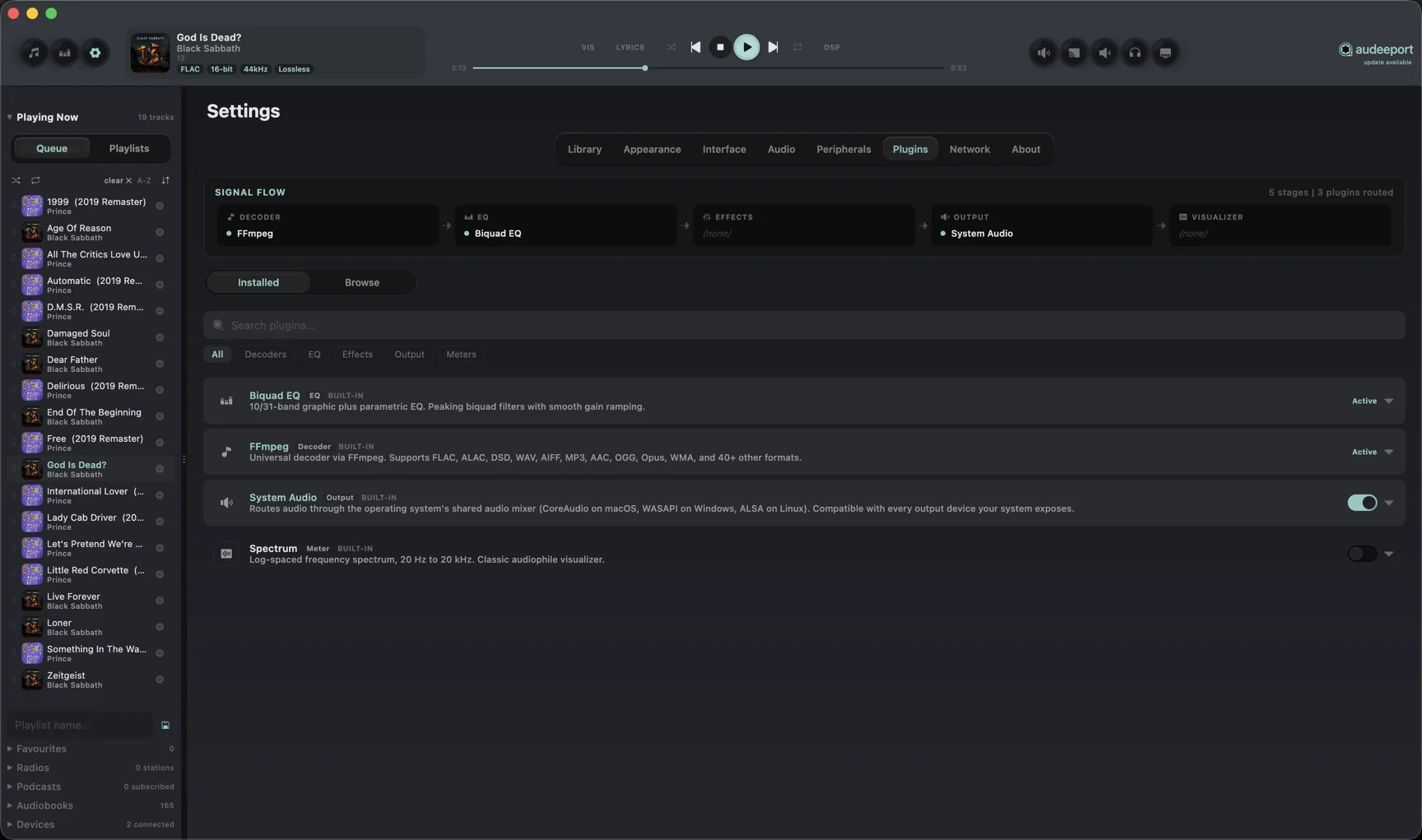
Several plugins are bundled and can’t be removed: the FFmpeg decoder, the system audio output, the AirPlay and Chromecast cast outputs, the biquad EQ, and the spectrum visualizer, plus the CoreAudio Exclusive output on macOS. Everything else is something you install.
The DSP chain
The DSP chain is where effects stack. Each one processes the float audio buffer in order, then hands it to the next. You can install as many as you like and drag them into the order you want:
- Crossfeed. Blends a little of each channel into the other so headphones feel less inside-your-head.
- Subsonic filter. Cuts rumble below a chosen frequency before it eats headroom.
- Haas widener. Widens the stereo image with a short interaural delay.
- Tube saturation. Adds even-order harmonics for a warmer, valve-style colour.
- Reverb. Adds room or hall space.
- Vinyl simulator. HF rolloff, drive, surface crackle, hiss, and a sub-bass cut, tuned to be audible out of the box and adjustable from its own settings card.
- Linear-phase FIR EQ. A finite-impulse-response equalizer with no phase smearing, for when you want the surgical correction without the group delay of an IIR filter.
- Dither. Shaped noise applied when reducing bit depth, so quiet detail survives the truncation.
- Loudness monitor, oscilloscope, goniometer. Measurement and metering effects for keeping an eye on level and stereo correlation.
That list is a sampler, not the whole shelf. The in-app store carries more: dynamics like a compressor, limiter, gate, and de-esser; colour effects like tape saturation and bass enhancement; a tilt EQ; and extra metering such as peak, VU, and correlation meters. Browse the current catalogue in Settings > Plugins, since the store is updated over time.
Every effect has its own enable / disable toggle. Turn one off and it leaves the chain untouched, ready to switch back on. The player bar carries a compact DSP pill that lights up when anything in the chain is active, and hovering it tells you which effects are running.
The marketplace
Most effects come from the in-app marketplace. Open Settings > Plugins, browse the store tab, and install with one click. Audeeport fetches the plugin, verifies its checksum, caches it under your home directory, and registers it into the chain. Installed marketplace plugins sit in the same list as the bundled ones, with a type pill showing what each is.
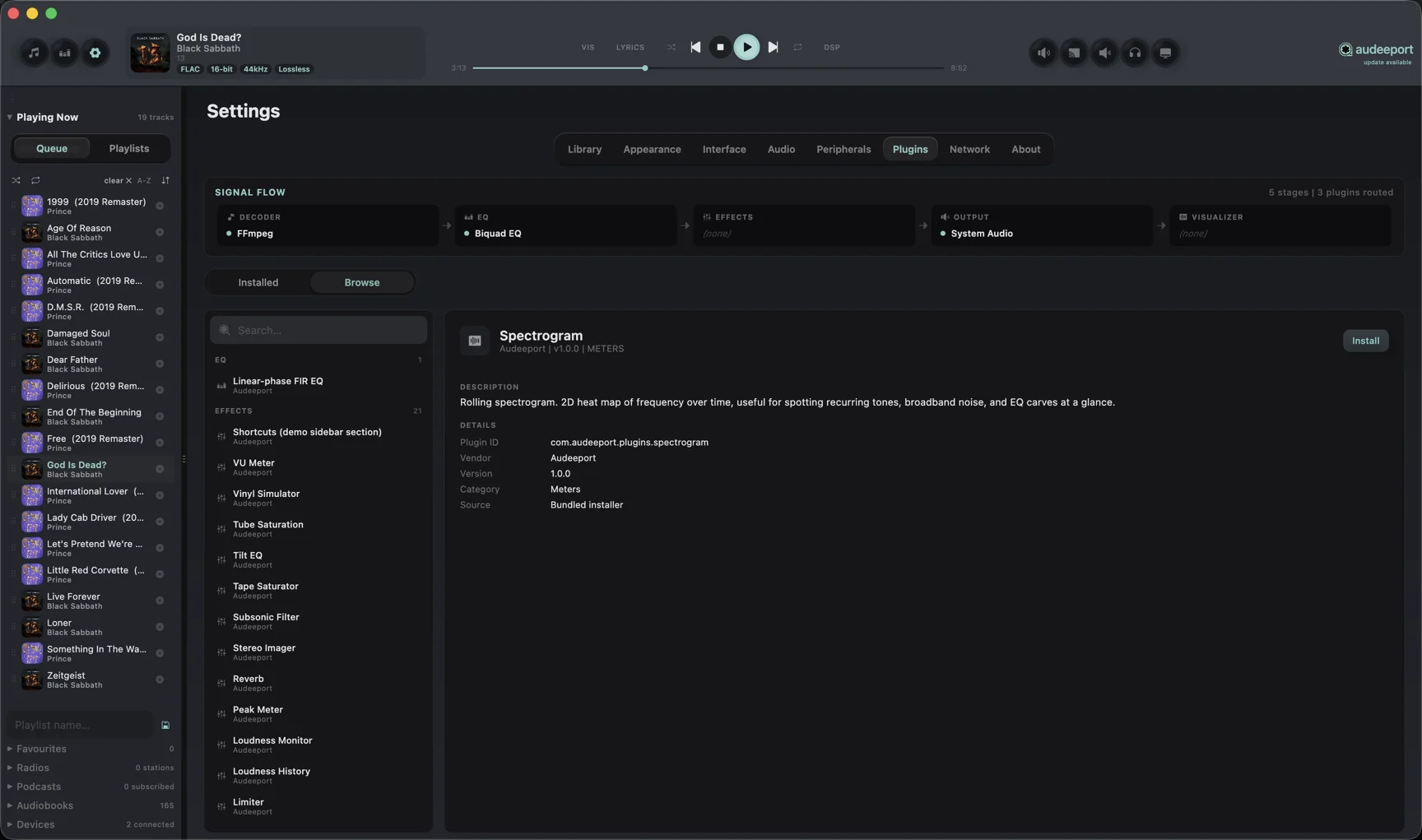
Removing a plugin reverts it to the available-to-install state. Bundled plugins show a Built-in badge and have no remove option.
Bit-Perfect output (macOS)
The CoreAudio Exclusive output plugin is the bit-perfect path on macOS. When it’s active:
- Exclusive / hog mode. Audeeport takes exclusive control of your DAC and bypasses the macOS shared mixer. While it’s active, every other app on the machine loses audio: notifications, the browser, video calls, system chimes, all silent. In return, the decoded stream reaches the DAC untouched.
- Auto sample-rate switching. On every track open, the plugin reads the file’s native rate (44.1, 48, 88.2, 96, 176.4, 192 kHz and up) and tells the DAC to lock to it, so the OS never resamples.
- Hardware volume. Volume keys and the slider map to the DAC’s own hardware volume where the device supports it, keeping the digital stream full-scale.
Bit-perfect is a strict claim, and a few things break it. Software volume below 100%, any active EQ, and any DSP effect each alter the signal before it leaves the engine. When one of these is active, Settings > Plugins and the player bar flag exactly what’s compromising the path and how to switch it off. Leave the EQ flat and the DSP chain empty, drive volume from the DAC, and the stream reaches your hardware bit for bit.
Hot-swapping output
You can change the active output plugin mid-track. Switch from system audio to CoreAudio Exclusive, or move between DACs, while music is playing. Audeeport pauses briefly, opens the new device, and resumes. If exclusive mode can’t acquire the device, it falls back to system audio rather than dropping the track.
Where to go next
- Audio engine. The decode path and sample-rate switching the chain runs inside.
- Equalizer. The bundled biquad EQ slot, bands, and output profiles.
- Privacy. What the player does and doesn’t send over the network.