Library
Your library lives where your files do. Audeeport indexes them, it never copies, moves, or rewrites them unless you explicitly ask it to.
Source folders
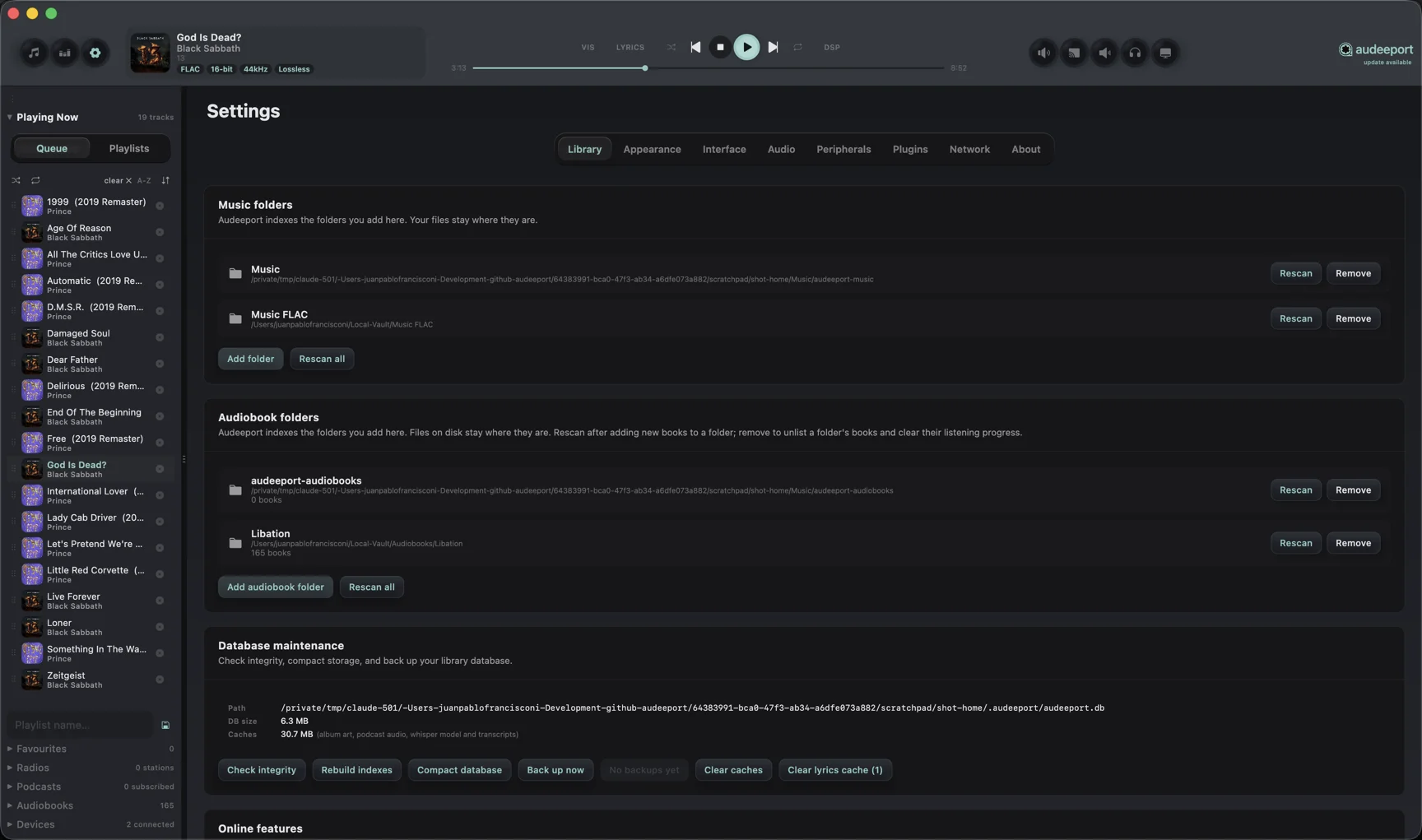
Settings > Library > Add Folder. Point Audeeport at one or more locations: your Music directory, an external drive, a NAS mount, anywhere your files live. You can add as many source folders as you like. Nothing is copied or moved. Audeeport only records where the files are.
The scanner reads embedded tags first (title, artist, album, genre, year, track and disc number) and falls back to your folder structure when tags are missing. Album art is found in the album folder, in an Artwork/ subfolder, or one level up. CD1 / CD2 / Disc N subfolders are folded into a single album automatically.
Scanning
A scan estimate, track count plus a rough ETA, appears before any long scan starts. Albums show up progressively as the scan runs rather than all at once, so you can start browsing immediately.
If you quit mid-scan, Audeeport remembers the last directory it finished and picks up from there on the next launch. Re-scanning an existing folder only syncs what changed.
Browsing
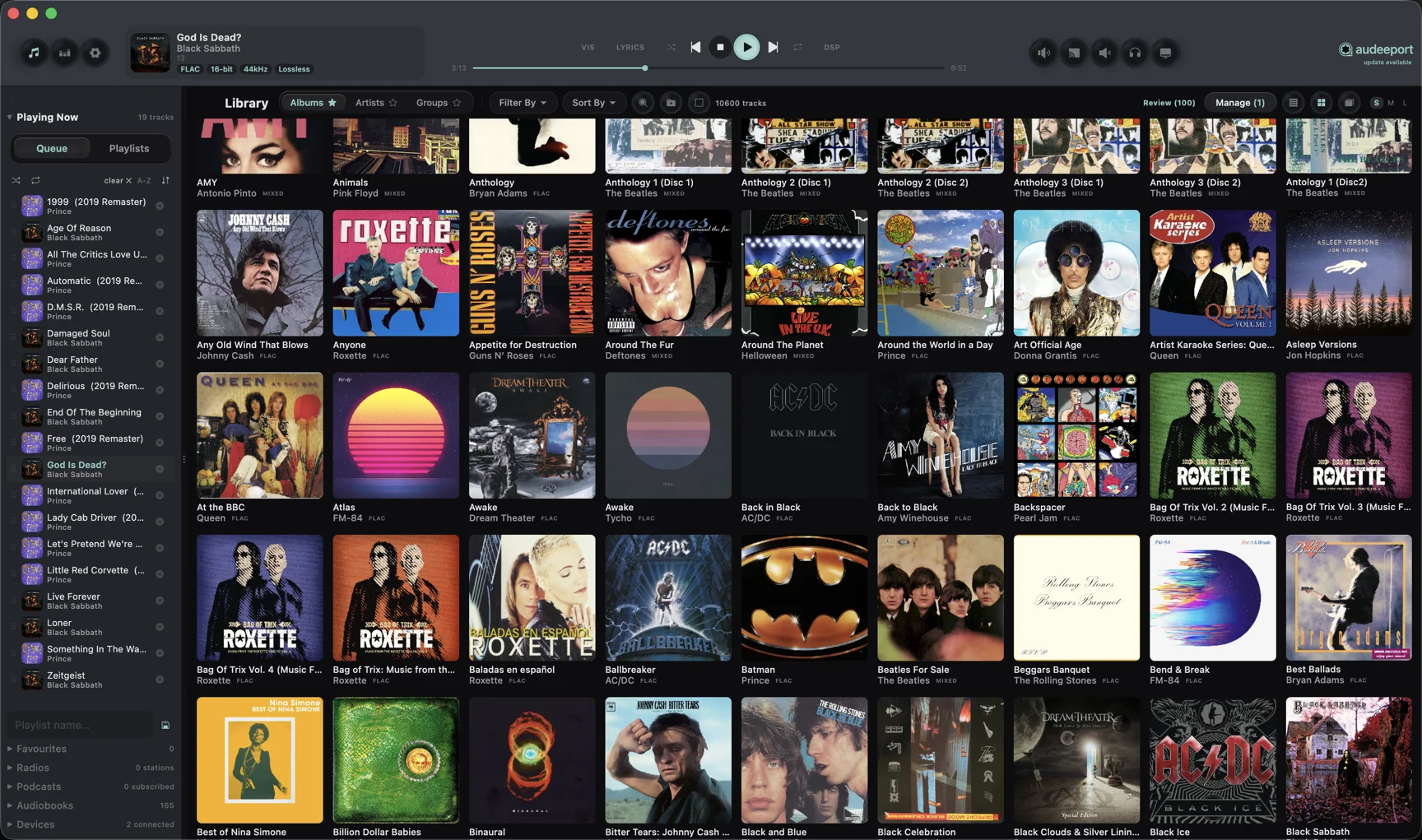
The library browser has several browse modes:
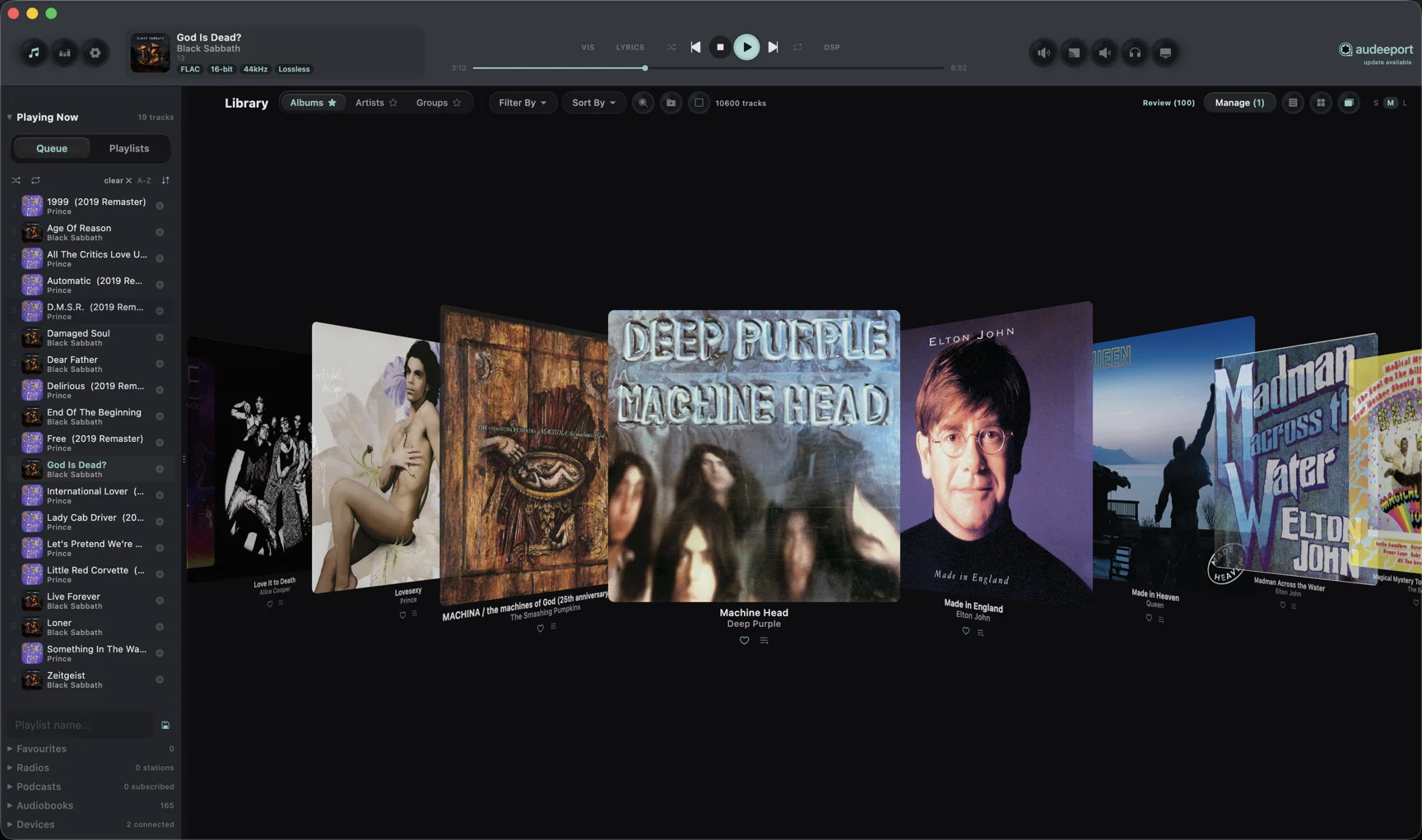
- Albums. A grid of cover art, a compact list, or, on desktop, an iPod-style CoverFlow with 3D perspective scrolling: the center album faces you, side albums tilt away, and clicking one animates it to center. Grid and CoverFlow thumbnails have S / M / L size buttons.
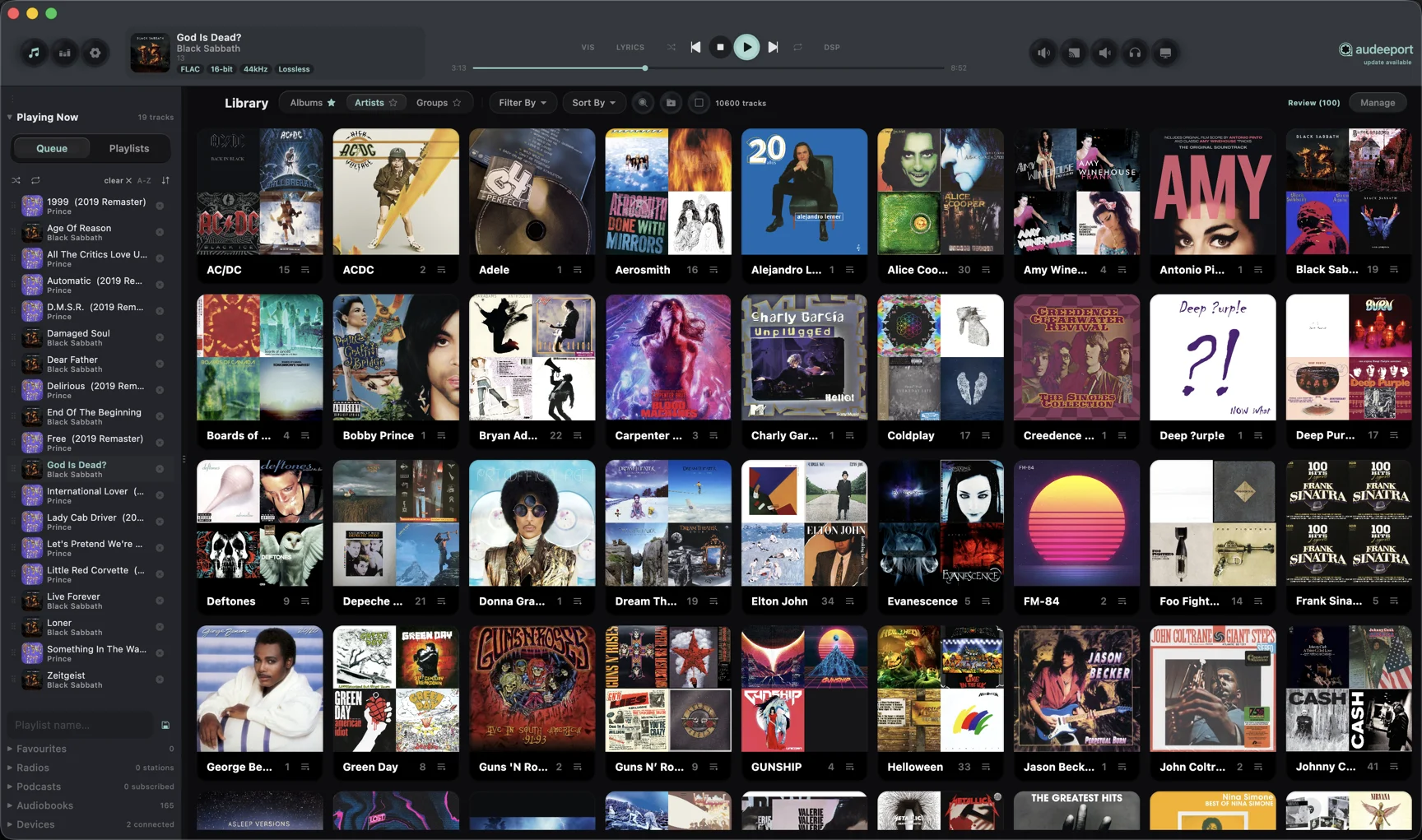
- Artists. Square tiles with a 2x2 cover collage and a track-count info bar. Click through to that artist’s albums.
- Groups. Your own buckets of albums, for example “Spanish,” ”90s rock,” or “Workout.” Create a group, drill into it with a leading ”+ Add albums” tile and a picker dialog, and hover the group’s X to delete it.
Genre filtering lives in the sidebar rather than in its own tab: pick a genre from the Genres list under Playlist to narrow the album view down to that genre.
When several albums share a name, Audeeport adds [Disc 1] / [Disc 2] labels automatically so different editions and discs stay distinct.
CoverFlow and the 3D album view are desktop features. The mobile apps carry the same library, tracks, albums and artists, in a layout tuned for a phone.
Favourites, ratings, and play counts
Tap the heart on an album card to favourite it, with a small pulse animation. Favourited albums collect in a Favourites accordion in the left sidebar with art thumbnails, and different editions or discs of the same album favourite independently.
Tracks carry a 1 to 5 star rating and a play count that increments automatically each time a track starts. Both persist in the library and can drive smart playlists.
Playlists and smart playlists
Playlists are hand-curated. Add individual tracks or whole albums, drag the handle to reorder, and save them by name. The active queue can auto-save back to the playlist it came from.
Smart playlists build themselves from rules, for example “Genre is Rock AND Rating is greater than 3.” You can filter by genre, artist, album, title, rating, play count, and date added, using operators like equals, contains, greater than, and less than. Choose whether tracks must match all rules or any rule, then sort and cap the result to N tracks. The list re-evaluates as your library changes.
Batch operations
Hover an album card to reveal its checkbox, or use Select All. With albums selected, a segmented action bar appears so you can act on the whole selection at once: analyze tags against online databases, transfer to a connected device, or remove. Removal asks whether to drop the albums from the library only or delete the files from disk, and the disk option always confirms first.
Each album also has a right-click menu with per-album actions: play next, add to queue, add to a playlist, add to favourites, add to a group, edit metadata, find alternate album covers, and analyze metadata. Select two or more albums that belong together and the menu offers Merge Albums to fold them into one.
Cleaning up track titles
Rips often arrive with junk baked into the track titles, such as a leading year, artist, album, or track-number prefix. Open an album’s track table and click the wand icon in the header to open Clean up track titles. It previews every title’s before and after so you can vet the whole batch before anything is written. Two strategies are offered: Smart cleanup, which removes only prefixes that provably match this album’s metadata, and Keep last segment only, which is more aggressive and worth checking against the preview. You choose whether to write to the library only or to the file tags as well.
Offline and disconnected drives
An external drive that goes missing will not erase your library. Before scanning, Audeeport checks that each source folder is actually reachable. If a path is gone, not a directory, or unreadable, it is treated as offline and skipped rather than wiped. The folder stays in your list with a DRIVE OFFLINE badge, de-emphasized but intact, so plugging the drive back in restores it where it was.
Library tools
On desktop, the Library settings tab includes a set of maintenance tools:
- Library statistics. Total tracks, albums and artists, total playtime, a format breakdown, and your top genres.
- Duplicate finder. Find duplicate tracks by title and artist, by title and album, or by filename.
- Integrity check. Runs a database integrity check and reports whether the library is healthy or describes what it found. Companion actions reindex and vacuum the database to reclaim space.
- Timestamped backups. Snapshot the library database to a timestamped file under
~/.audeeport/backups/, then list and restore from any of them later.
These power tools operate on the database, so they live on desktop. On the mobile apps the library database sits inside the app sandbox and maintenance is not exposed.
Where to go next
- Getting started. Add your first folder and pick an output.
- Audio engine. What happens once you press play.
- Equalizer. Bands, profiles, and headphone correction.