Equalizer
The EQ runs in the same 64-bit float space as the rest of the audio engine, in three modes: a 10-band graphic, a 31-band graphic, and a fully parametric mode. The implementation is biquad IIR (the standard structure used in studio DSP) and preset transitions are smooth-ramped (about 50 ms) so switching never produces a click.
The EQ applies to all sources: local files, internet radio, podcasts, audiobooks. There’s no separate “radio EQ”. Whatever you set is what you hear.
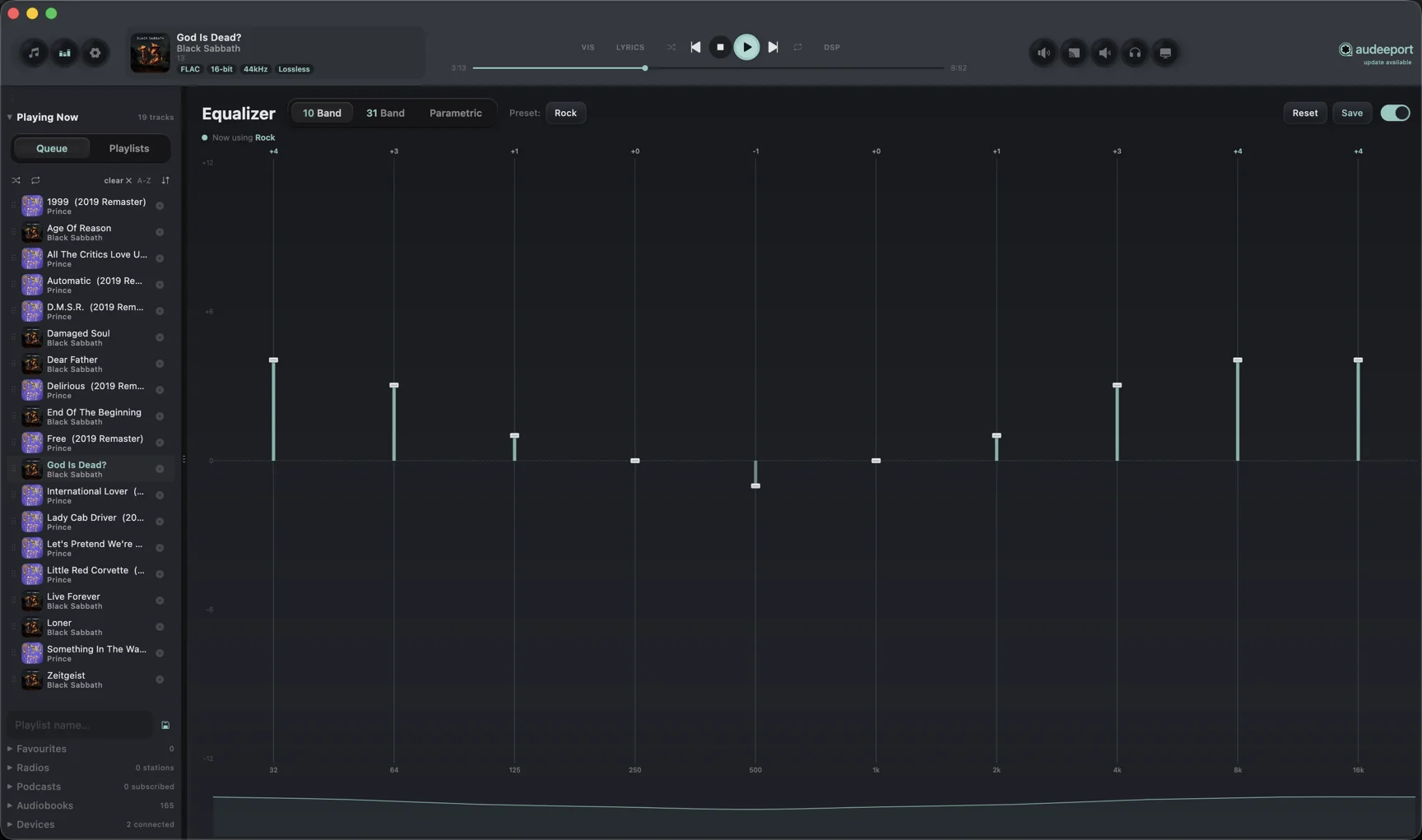
Graphic modes: 10 and 31-band
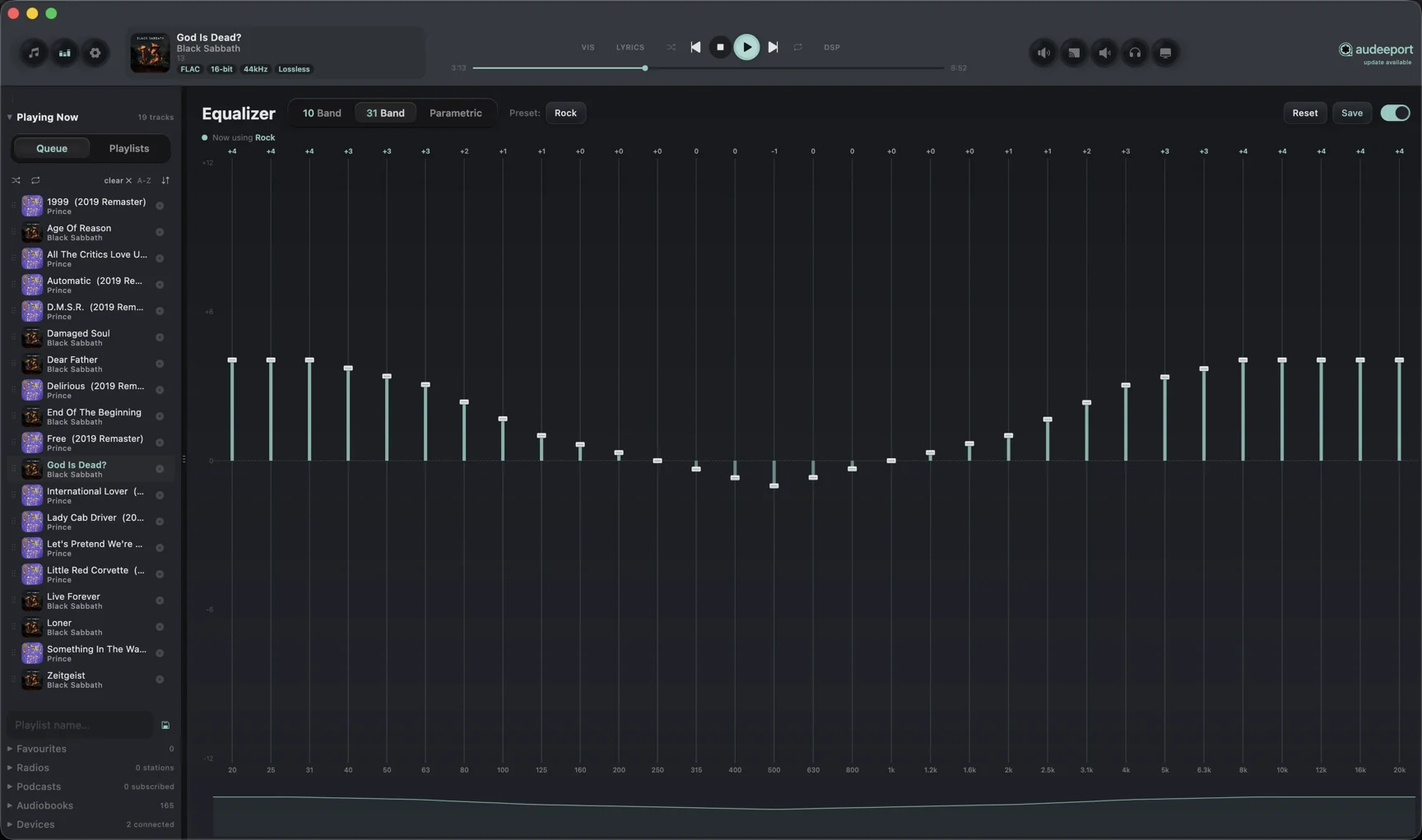
In the two graphic modes, each band’s frequency and Q are fixed. You set only its gain, ±12 dB:
- 10-band uses the standard octave centre frequencies (32, 64, 125, 250, 500, 1k, 2k, 4k, 8k, 16k Hz).
- 31-band adds the 1/3-octave intermediates and gives you finer surgical control over peaks and dips.
You can toggle between 10 and 31-band on any preset. Values from the bands you “lose” are remembered if you switch back.
Parametric mode
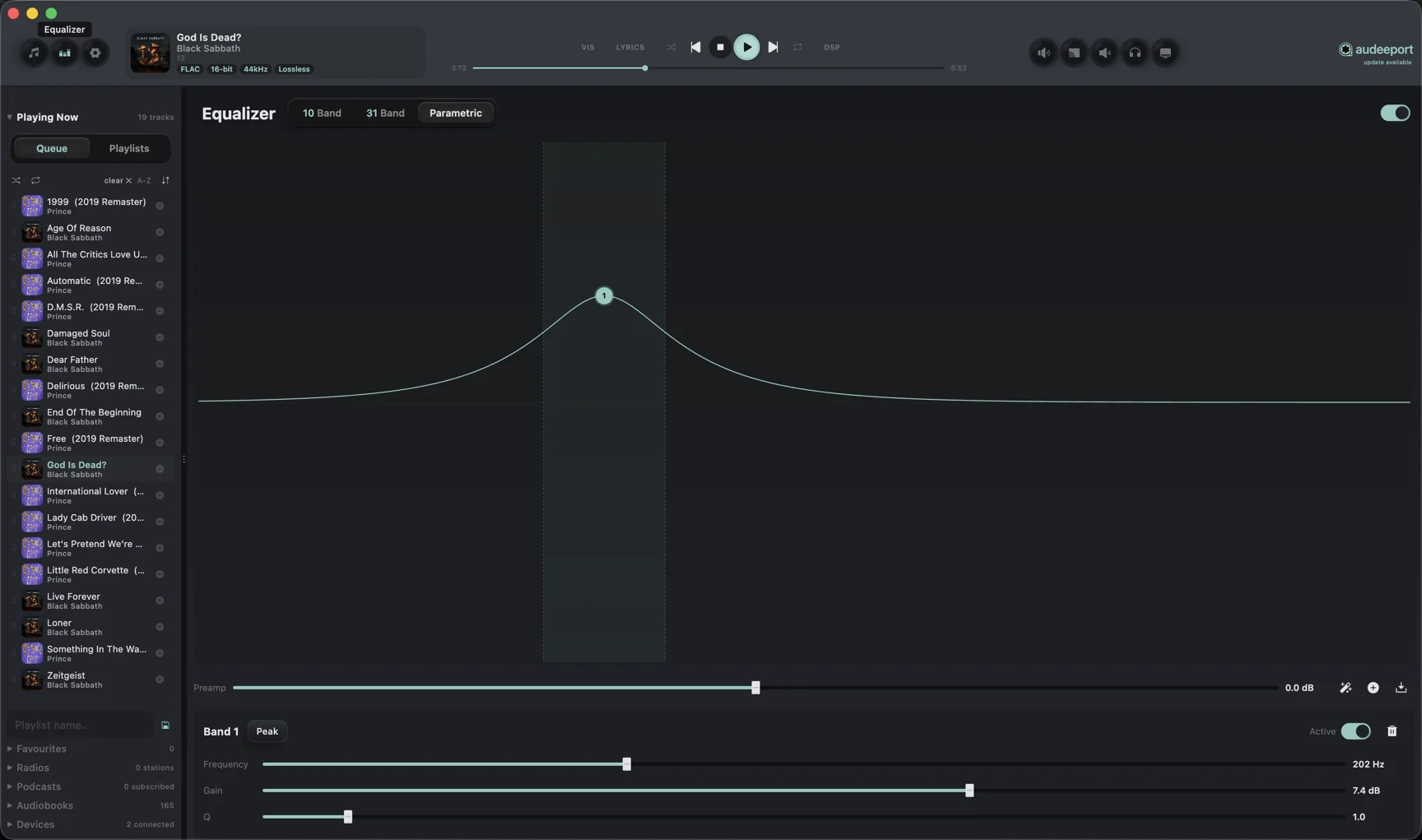
The fully parametric mode hands you every control the graphic modes keep fixed. Each band has its own:
- Filter type. Peaking, shelf, and pass filters.
- Frequency. The centre of the band, in Hz, placed anywhere you like.
- Gain. ±24 dB.
- Q. Bandwidth. Higher Q is narrower.
There’s also a global preamp for headroom. Parametric mode ships with its own starting curves (Flat, V-Shaped, Bass Boost, Vocal) that you edit and save as custom presets.
Headroom and bit-perfect
The graphic modes protect against clipping automatically. When you boost bands, Audeeport pre-attenuates the input by the peak of the combined response of every band, not per-slider, so overlapping boosts never push a full-scale source into clipping. A boost is therefore relative loudness: “Bass +6 dB” makes bass louder relative to the rest, not louder than full scale. A flat curve, or a cut-only curve, has no positive peak, so it leaves the signal untouched at exact unity and stays bit-for-bit identical.
Built-in presets
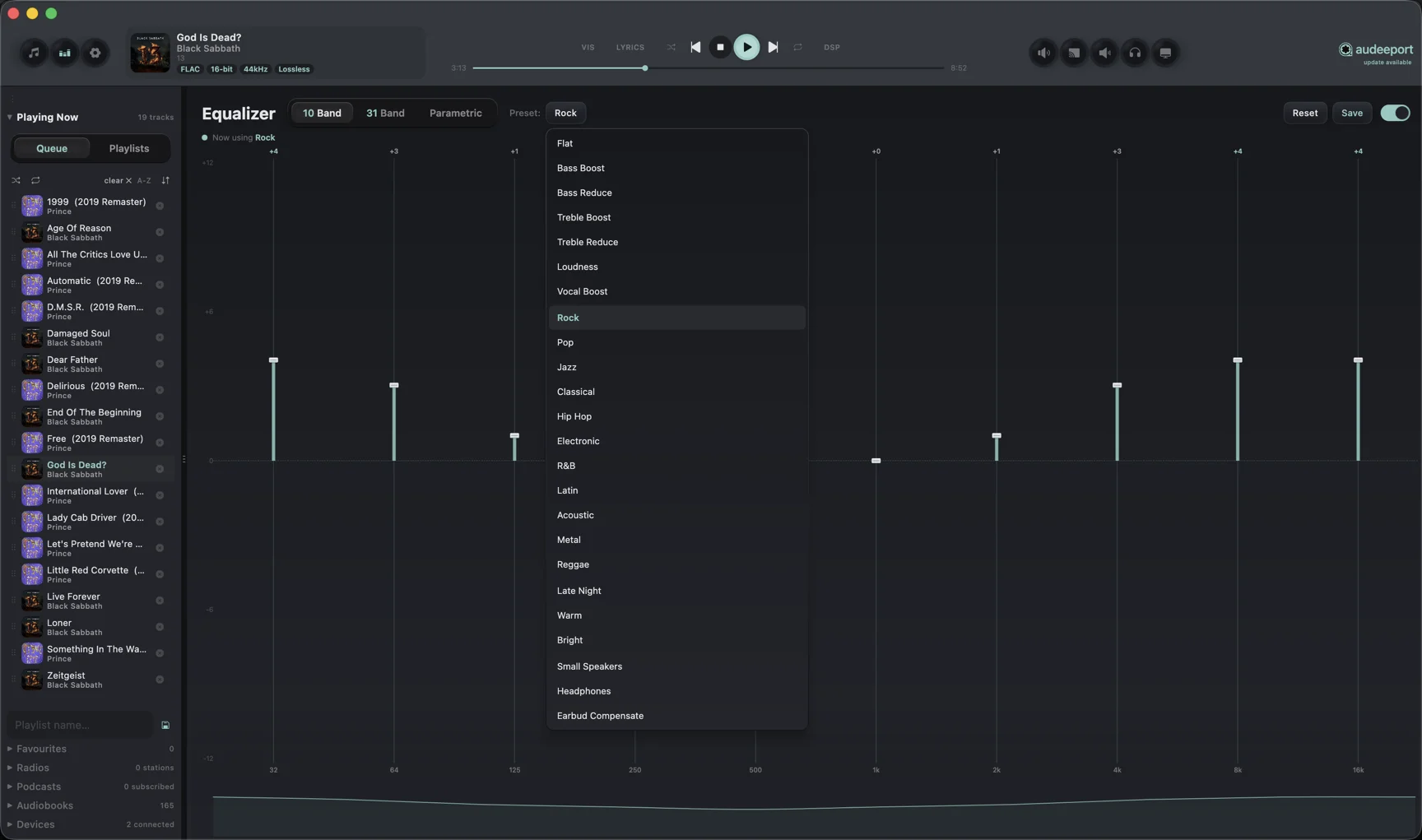
General
- Flat
- Bass Boost
- Bass Reduce
- Treble Boost
- Treble Reduce
- Loudness
- Vocal Boost
Genre
- Rock
- Pop
- Jazz
- Classical
- Hip Hop
- Electronic
- R&B
- Latin
- Acoustic
- Metal
- Reggae
Mood
- Late Night
- Warm
- Bright
Correction
- Small Speakers
- Headphones
- Earbud Compensate
Presets are starting points, not endorsements. The “right” curve depends on your peripherals, your room, and your taste. Save your edits as a custom preset to keep them.
Output profiles
A profile bundles three things:
- An audio output device (your DAC, your Bluetooth headphones, your built-in audio).
- A peripheral type (headphones, IEMs, external speakers, studio monitors).
- An EQ curve.
You can also pick a specific model from a built-in catalogue of around two hundred popular headphones, IEMs, speakers, and monitors, which pairs the profile with the matching correction target.
Switching profiles is one click. The EQ values change, the active output device changes, and Audeeport remembers the curve per peripheral type. So when you swap from your IEMs back to your studio monitors, you don’t lose either curve.
Per-peripheral pools
Each peripheral type maintains its own list of profiles. This means you can have a “Listening” curve for your IEMs that’s totally separate from your “Mixing” curve on your monitors, and switching never stomps the other.
Importing parametric headphone correction
Parametric correction files for over four thousand headphone models are widely available online in a standard text format. Drop a file onto the EQ panel and Audeeport parses it as a preset.
The format Audeeport expects looks like:
Filter 1: ON PK Fc 105 Hz Gain -1.5 dB Q 1.0
Filter 2: ON PK Fc 1500 Hz Gain 2.0 dB Q 1.5
...
If your file is in a slightly different format, paste it into the import dialog. Audeeport will tell you which lines it could and couldn’t parse.
Stale-device cleanup
If a profile points at a device that isn’t enumerable on startup (your USB DAC was unplugged, your AirPlay receiver is off), Audeeport flags it but keeps the profile around. Plug the device back in and the profile resumes working.
Virtual device filtering
The output picker hides virtual audio devices commonly installed by conferencing software (Teams, Zoom, WebEx) and by audio routers (BlackHole, Soundflower). To use one of those as a real output, toggle Show virtual devices in Audio settings.
Where to go next
- Audio engine. What the EQ runs inside.
- Skins. The EQ visualisation lives in the player bar.