Audiobooks
Audiobooks get their own section in Audeeport, separate from your music. Point the app at a folder, and it works out which files are books, splits them into chapters, and remembers where you stopped. This is a shared feature: the desktop app and the mobile apps behave the same way and read from the same library.
Adding audiobook folders
Settings > Library > Add Folder, the same place you add music. Audeeport recognizes audiobook content and files it under the Audiobooks section instead of your albums. Nothing is copied or moved; your files stay where they live.
Settings > Library lists every audiobook source directory derived from the books it found. Removing one unlinks all books in that directory and clears their progress. The files on disk are untouched, so a re-scan brings them back.
How books are detected and organized
Audeeport detects .m4b files, and .m4a / .mp3 files that live inside an audiobook folder. It reads each book’s title, author, narrator, year, and cover art, then extracts the chapter structure.
Two layouts are handled automatically:
- Single-file books. A
.m4bplays directly and uses its embedded chapter markers. - One file per chapter. A folder of numbered
.mp3files (the common Audible-rip layout) is queued in order, with each file treated as a chapter and real titles read from the file tags where present.
If a book’s embedded cover is missing or wrong, open its detail panel and search for a replacement, then apply the one you want. You can also drop in your own image.
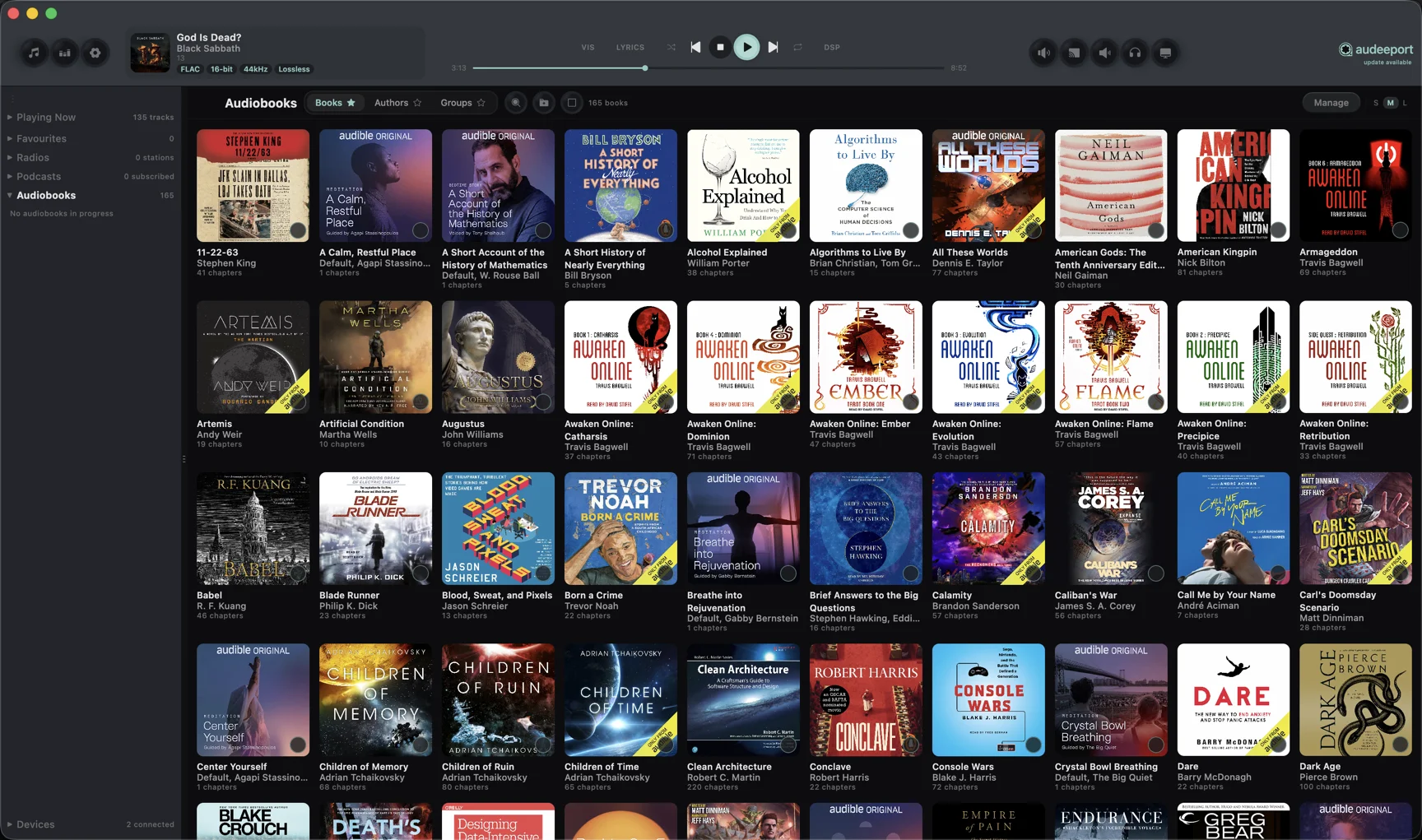
Browse your library three ways: Books (a flat grid with cover art and a listen-progress bar), Authors (author tiles with book counts), and Groups (buckets you create yourself, like “Sci-Fi” or “Re-listen pile”).
Playback and transport
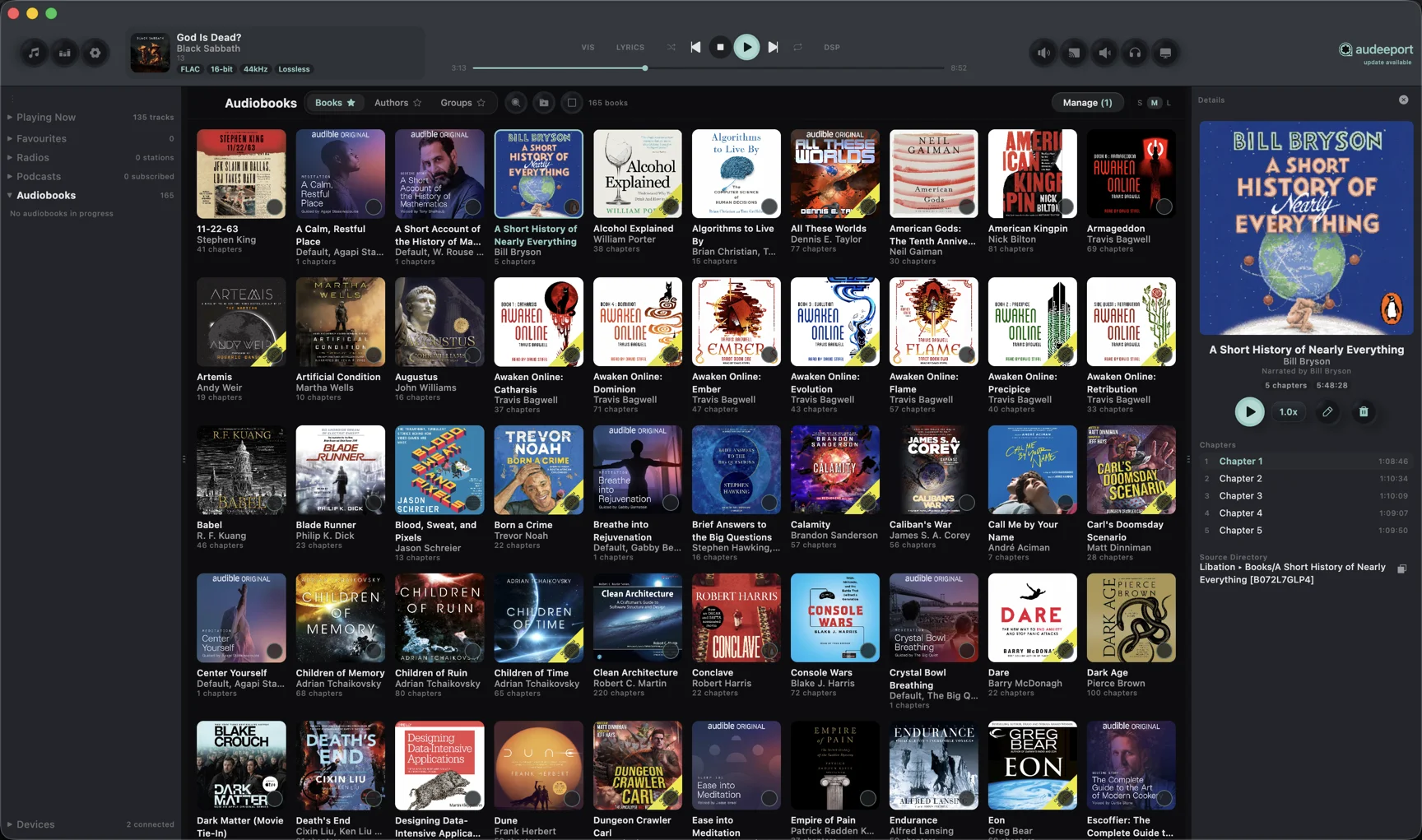
Open a book to see its detail panel: cover, title, author, narrator, and the chapter list. The transport for audiobooks is built for long-form listening:
- Previous / next chapter. Jump straight to a chapter boundary.
- Minus 10 / plus 10 seconds. Fine skips for when you missed a line or want to nudge past a gap.
- Per-chapter seeking. The seekbar can scrub within the current chapter or across the whole book.
The chapter list highlights the chapter you’re in and updates live as playback moves. Tap any chapter to jump to it.
Speed control
Speed runs from 0.75x to 2x with pitch preserved, so voices stay natural rather than turning into a chipmunk or a drawl. The chosen speed is remembered per book, so a fast narrator and a slow one can each keep their own setting without you re-adjusting every session.
Position memory and resume
Your listening position auto-saves while you play. When you come back, whether after closing the app or switching machines, the book resumes from where you left off. Picking an in-progress book from the sidebar takes you to it and continues playing rather than restarting from the top. Finished books are marked complete.
Syncing to a device
When you push a book to a connected device, a DAP, an iPod, or a paired phone, its chapter structure travels with it. Audiobook files are often very large, so transfers stream through without loading the whole file into memory. Multi-select several books and send them in one go.
Where to go next
- Getting started. Add your library and pick an output.
- Audio engine. Formats, sample-rate switching, and the speed engine.
- Devices. Sync content to DAPs, iPods, and phones.