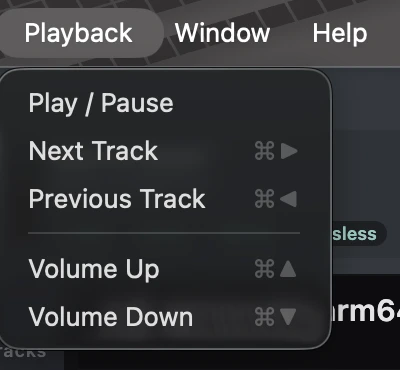
The Playback menu on macOS lists the same transport shortcuts.
Media keys
Hardware media keys on your keyboard or headphones control playback:
Key
Action
Play / Pause
Toggle playback.
Next track
Skip to next.
Previous track
Skip to previous.
On macOS the media keys are captured system-wide, so they work even when Audeeport is not the frontmost app. On Windows and Linux they are handled while Audeeport has focus.
Sections
Jump straight to a section from anywhere in the app:
Shortcut
Action
Cmd + 1
Music Library.
Cmd + 2
Audiobooks.
Cmd + 3
Radio.
Cmd + 4
Podcasts.
Cmd + 5
Streaming.
Cmd + Shift + E
Equalizer.
Library navigation
Shortcut
Action
Arrow keys
Navigate the album grid.
Enter
Select the highlighted album.
Cmd + A
Select all albums or tracks on the current view.
Esc
Clear the current selection.
Cmd + ,
Open Settings.
Cmd + Q
Quit Audeeport.
Cmd + M
Minimize window.
Menu bar
On macOS, the menu bar exposes the same shortcuts alongside their menu items:
Menu
Item
Shortcut
File
Preferences
Cmd + ,
File
Quit Audeeport
Cmd + Q
Go
Music Library
Cmd + 1
Go
Audiobooks
Cmd + 2
Go
Radio
Cmd + 3
Go
Podcasts
Cmd + 4
Go
Streaming
Cmd + 5
Go
Equalizer
Cmd + Shift + E
Playback
Next Track
Cmd + Right
Playback
Previous Track
Cmd + Left
Playback
Volume Up
Cmd + Up
Playback
Volume Down
Cmd + Down
Window
Minimize
Cmd + M
Notes
Space only triggers play/pause when no text input is focused, so you can still type spaces in search fields, playlist names, and preset names without interrupting playback.
Volume changes are in 5% increments.
Cookies. Audeeport uses essential cookies only. Sign-in tokens, invite-gate access, and the dismissal of this notice. No analytics. No third-party trackers. Read the full policy.