Device sync
Device sync lives in the Devices section of the sidebar. It’s a desktop-only feature. The mobile apps receive content over the wireless device link, but the syncing itself happens from the desktop.
Plug a device in and Audeeport detects it. From there you pick what to send, the files travel with their tags and artwork, and you eject when you’re done.
What Audeeport syncs to
Classic iPods
iPod Classic, Video, and Nano are detected through their iPod_Control/ folder. Audeeport writes the real iTunesDB and ArtworkDB through libgpod, so synced tracks appear natively on the iPod, complete with cover art rendered into the device’s ithmb format. Add tracks, edit per-album metadata on the device, and delete from the iPod with the database kept in sync.
Digital audio players
Android-based DAPs (iBasso, FiiO, and similar) sync over ADB. Audeeport pushes files into the device’s Music/ and Audiobooks/ folders and reads them back with full tags and artwork. Rockbox and other USB Mass Storage players work the same way through a mounted Music/ folder.
ADB is required for Android DAPs. Install it once with
brew install android-platform-tools. If the device shows as unauthorized, accept the USB Debugging prompt on the player.
USB drives
Any USB Mass Storage volume with a Music/ folder (or music files at the root) is picked up. Copy albums or audiobooks straight onto the drive.
Per-storage views
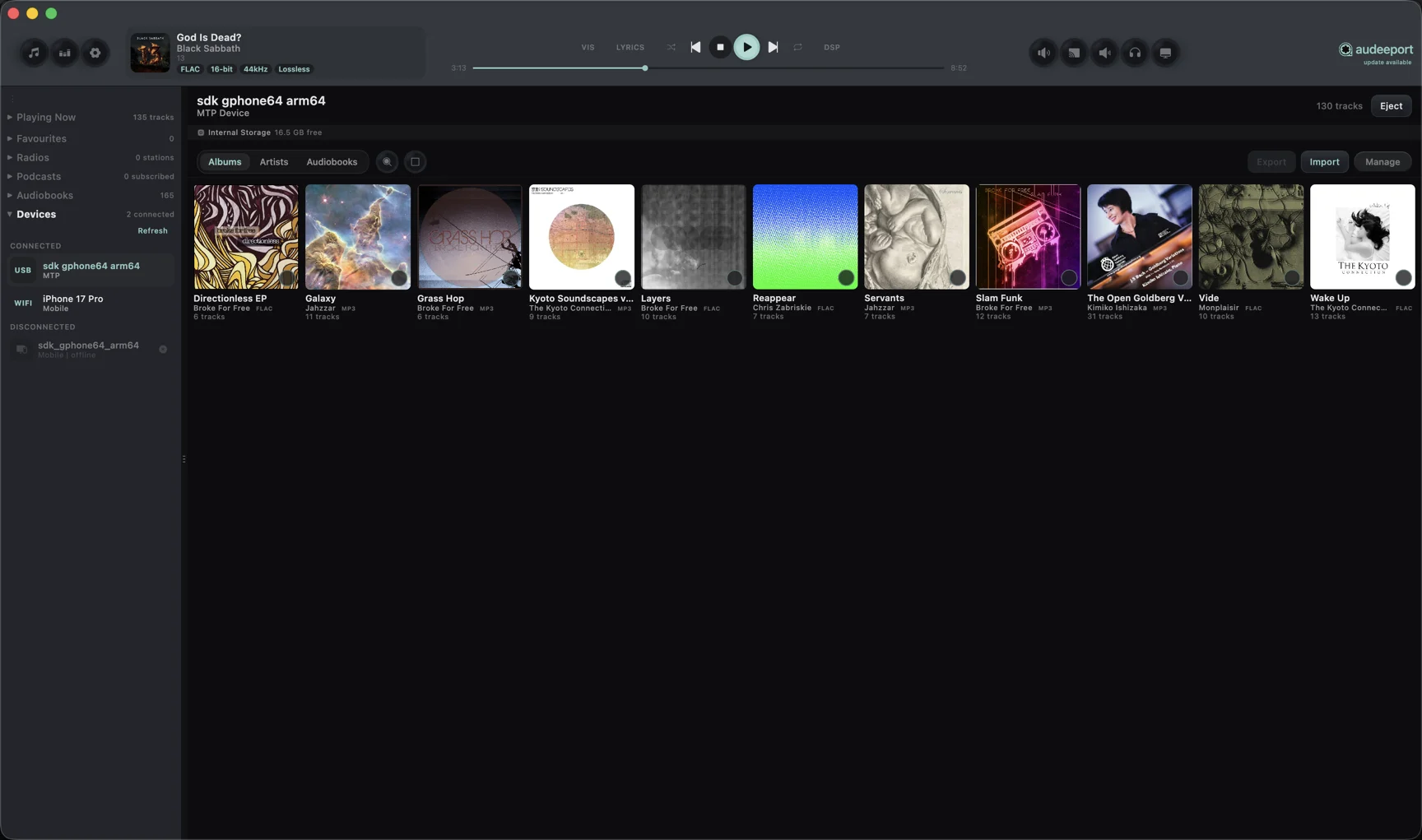
DAPs often have both internal storage and an SD card. Audeeport enumerates each one separately, with its own label, capacity, and free space, so you always know where a transfer is going. Pick the destination before you sync. Internal and SD card never get mixed up.
Choosing what to send
Multi-select albums or audiobooks from your library and push them with a progress bar you can cancel at any time. The picker can filter by codec with per-format track counts, so an iPod transfer can show MP3 only while a DAP run prefers FLAC.
Tags, cover art, and folder structure travel with every file. Audiobooks keep their chapter structure: the chapter markers embedded in the file move with it, so the book scrubs and resumes correctly on the device.
FLAC to ALAC for older players
Classic iPods don’t play FLAC. When you sync FLAC to an iPod, Audeeport converts each file to ALAC (Apple Lossless) at 16-bit / 44.1 kHz on the way over. It’s still lossless, just in a container the iPod understands. The confirmation dialog warns you before any conversion runs, so there are no surprises.
Safe eject
Hit Eject before you unplug. Audeeport flushes the device database (on iPods) and unmounts the volume cleanly, so you don’t pull the cable mid-write and corrupt a partly-written file.
Streaming from a NAS or shared folder
You don’t have to copy anything to listen to a library that lives on the network. Add a NAS mount, a shared folder, or any network drive as a library source under Settings > Library > Add Folder. Audeeport plays those files in place, streaming them across the network on demand. Nothing is copied to your local disk, and the full audio path still applies, so a hi-res file on the NAS plays at its source rate just like a local one.
Sending to a phone
Phones aren’t plugged in like an iPod or a DAP. To move albums and audiobooks to the iOS or Android app, pair it over your local network first, then push content to it wirelessly. The pairing and transfer flow lives in the mobile apps guide.
Where to go next
- Audio engine. How files decode and reach your DAC.
- Mobile apps. Pairing a phone and receiving synced content over the wireless device link.
- Getting started. Adding folders, including network sources.
- Privacy. What stays on your machine.